

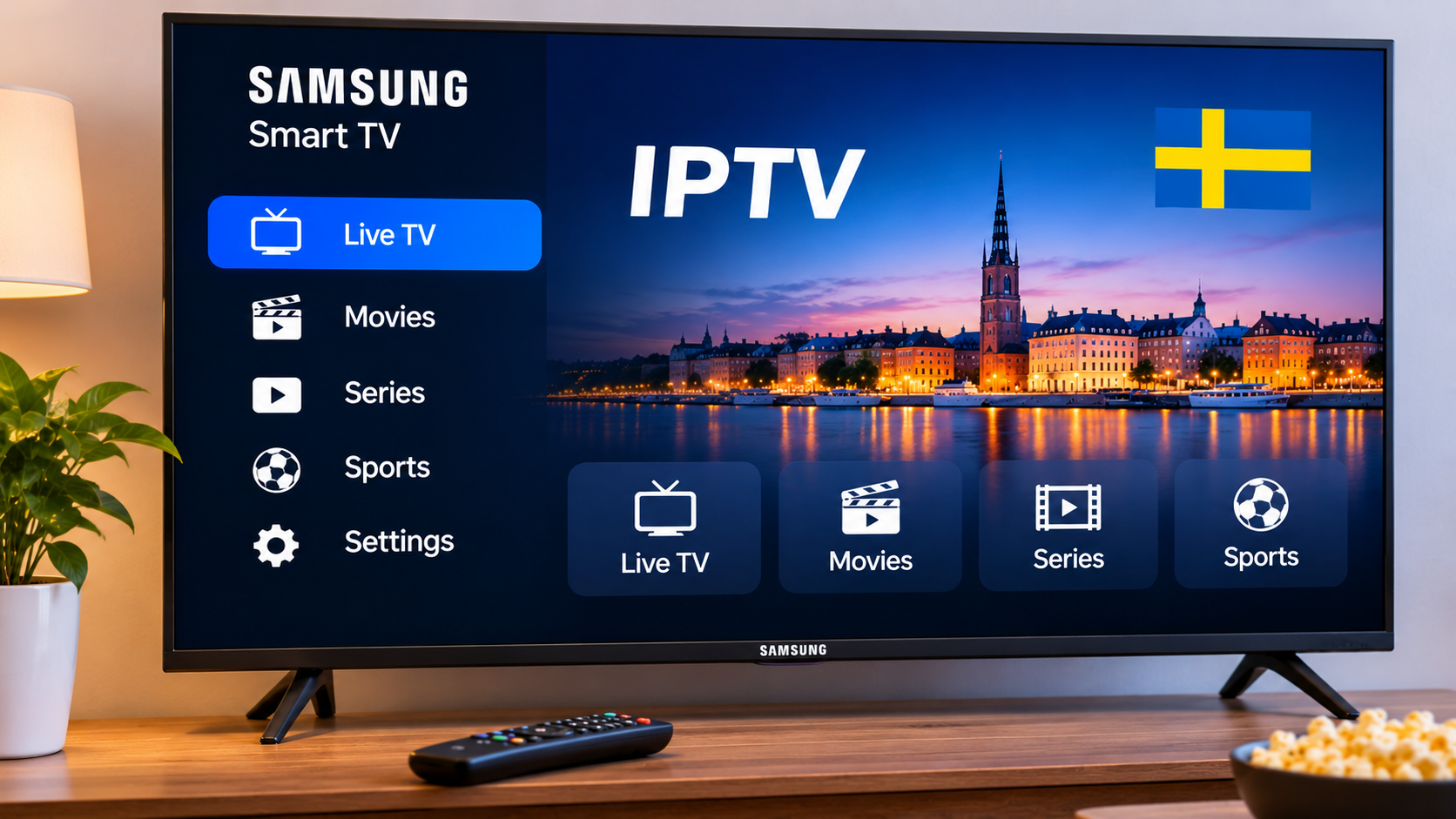

Samsung Smart TVs are widely used for streaming because many models include built-in internet connectivity, app support, and a straightforward television interface. For viewers in Sweden, this can make IPTV accessible without automatically needing a separate streaming box.
The quality of the setup still depends on several factors, including the Samsung TV model, available IPTV player, internet connection, login method, and software compatibility.
This guide explains what viewers should consider when setting up IPTV on a Samsung Smart TV.
How IPTV Works on a Samsung Smart TV
IPTV delivers television content through an internet connection rather than relying entirely on traditional terrestrial, cable, or satellite broadcasting.
On a Samsung Smart TV, users generally install a compatible IPTV player and connect it to subscription information provided by their IPTV service.
Depending on the application, supported connection methods may include:
-
M3U playlists
-
Xtream-style login details
-
Portal-based access
-
Application-specific playlist activation
The IPTV player acts as the interface used to organize and display available content.
Check Your Samsung TV Model
Samsung televisions from different years can use different software versions and may not support exactly the same applications.
Before choosing an IPTV player, check:
-
TV model
-
Software version
-
Available app store
-
Network support
-
Available storage
An application available on a recent Samsung television may not appear on an older model.
Checking compatibility before purchasing an app or subscription can save time.
Find a Suitable IPTV Player
The IPTV player is an important part of the viewing experience.
A useful player should support both the Samsung television and the account format provided by the IPTV service.
Features worth considering include:
-
Live TV categories
-
Favorites
-
Search
-
Electronic Program Guide
-
Movies and series sections
-
Subtitle support
-
Multiple audio tracks
-
Parental controls
-
Playlist refresh options
A simple, responsive application can often provide a better everyday experience than a complicated player with features that are rarely used.
IPTV Apps and Samsung's App Store
Many Samsung Smart TVs allow users to install streaming software through the built-in application store.
Availability can vary by television model and region.
When possible, applications should be installed from official or trusted sources.
Users should be cautious with unknown software that requires unusual permissions or asks for subscription credentials through unofficial websites.
Using M3U on Samsung TV
Some IPTV players support M3U playlist URLs.
The service supplies a playlist link, which is then connected to the application.
Depending on the player, the link may be entered directly on the television or added through an application-specific website.
Because an M3U URL may contain account information, it should remain private.
Avoid posting the complete link publicly or including it in screenshots shared online.
Using Xtream-Style Login
Some Samsung-compatible IPTV applications support Xtream-style account details.
This generally requires:
-
Server URL
-
Username
-
Password
The application may then load available live television, movies, series, and program information when supported.
This format can be easier to enter than a long playlist URL.
Apps That Use a Device ID
Some Samsung IPTV players use a different setup process.
When launched for the first time, the application may display a device identifier or MAC-style address.
The user then visits the player's official configuration page from another device and links the IPTV playlist to the television.
This method can reduce the amount of typing required with the Samsung remote.
The exact process varies by application.
Why Remote Navigation Matters
Television apps should be comfortable to use from several meters away.
When choosing an IPTV player for Samsung TV, pay attention to how easily the remote can:
-
Change channels
-
Open categories
-
Search
-
Add favorites
-
Return to previous menus
-
Access subtitles
-
Open the EPG
An attractive app interface is less useful if normal navigation requires too many steps.
Create a Favorites List
Large channel lists can be difficult to navigate.
Favorites provide a simple way to create a smaller collection of regularly watched channels.
A Swedish household might organize favorites around:
-
Swedish TV
-
News
-
Sports
-
Family programming
-
Movies
-
International channels
Keeping the list focused makes it more useful.
Adding hundreds of channels to favorites simply recreates the same navigation problem.
Use the Electronic Program Guide
An Electronic Program Guide, or EPG, can make live television easier to browse.
A well-configured guide may display:
-
Current programming
-
Upcoming shows
-
Start and end times
-
Channel schedules
-
Program descriptions
Instead of opening several channels to find something interesting, viewers can use the guide to see what is currently available.
Check the Timezone if the EPG Is Wrong
Incorrect program times do not always mean the EPG source is broken.
The television's timezone can affect how schedule information is displayed.
For users in Sweden, the Samsung TV should normally be configured to the correct local time.
Some IPTV applications also provide manual EPG offset controls.
Check the television time first before adjusting advanced settings.
Internet Stability Matters
A modern television and good IPTV application cannot compensate for an unstable connection.
Network problems may cause:
-
Buffering
-
Frozen video
-
Slow loading
-
Reduced picture quality
-
Temporary stream interruptions
If IPTV is buffering, test whether other streaming apps on the Samsung TV behave normally.
If several applications are slow, the problem may be related to the home network rather than the IPTV player.
Ethernet vs Wi-Fi
Many Samsung televisions support both Ethernet and Wi-Fi.
Ethernet
A wired connection can provide consistent performance when the router is close enough to the television.
It reduces problems caused by wireless interference and weak signal strength.
Wi-Fi
Wi-Fi is more convenient and can work very well when signal quality is strong.
The best option depends on the layout of the home.
Users who experience regular buffering over Wi-Fi can test Ethernet to determine whether the wireless connection is contributing to the issue.
Improve Wi-Fi Around the Television
The TV may be located farther from the router than smartphones or laptops typically used for internet tests.
Check signal quality near the actual television.
Wi-Fi performance can be affected by:
-
Thick walls
-
Several floors
-
Cabinets
-
Large furniture
-
Other wireless networks
-
Distance from the router
Moving the router into a more open position can sometimes improve streaming reliability.
Household Network Usage Matters
Several devices may be using the internet at the same time.
IPTV performance can be affected when other household members are:
-
Streaming high-resolution video
-
Downloading large games
-
Uploading cloud backups
-
Gaming online
-
Using video conferencing
If IPTV works well during quiet periods but buffers at busy times, network congestion may be part of the problem.
Samsung TV for IPTV in Sweden
Using IPTV directly through a compatible Samsung application can create a clean setup with fewer cables and devices.
People researching IPTV subscriptions, supported devices, streaming guides, and television options for Sweden can also explore Rapid IPTV Sweden while comparing services suited to different household setups.
The television should be considered as only one part of the overall system. The IPTV player, network, and subscription configuration are equally important.
Subtitles on Samsung IPTV Apps
Subtitles can be useful for films, series, documentaries, and international television.
Depending on the content source and player, subtitle options may include:
-
Swedish
-
English
-
Other Nordic languages
-
Original-language subtitles
If no subtitle track appears for one program, the content itself may not contain one.
Testing another film or channel can help determine whether the issue is specific to the stream.
Alternative Audio Tracks
Some IPTV streams contain multiple audio tracks.
These may include different languages or alternative commentary.
A compatible Samsung IPTV player may allow viewers to change the audio track during playback.
This can be particularly useful in multilingual households.
Parental Controls
Families may want to limit access to certain IPTV categories.
Depending on the player, parental-control features can include:
-
PIN protection
-
Locked channels
-
Hidden categories
-
Protected settings
Samsung televisions may also provide device-level parental controls.
Using both can create a more controlled environment for children.
Channel Organization
A large IPTV playlist becomes easier to use when unnecessary categories are hidden.
Some players allow users to:
-
Hide groups
-
Rename categories
-
Sort channels
-
Create favorites
-
Remove unwanted sections from the main view
For example, a viewer interested mainly in Sweden, sports, news, and movies may not need dozens of unrelated international categories visible every day.
Search Can Save Time
Search is particularly valuable when an IPTV service contains a large amount of content.
Depending on the player, search may work across:
-
Live channels
-
Films
-
Series
-
Programs
-
Categories
Users who frequently look for specific content should test the search feature before deciding whether an IPTV application suits them.
Restart Before Reinstalling
If an IPTV app freezes, deleting it immediately is usually unnecessary.
Try basic troubleshooting first:
-
Close the IPTV app
-
Restart the Samsung TV
-
Check the internet connection
-
Test another channel
-
Refresh the playlist
-
Check for app updates
Reinstalling the application may remove saved favorites or account settings.
Keep Samsung TV Software Updated
Samsung periodically releases television software updates.
Updates can improve compatibility, security, and system stability.
IPTV applications should also be kept reasonably current.
After a significant update, test the player before relying on it for an important sports event or program.
Check Available Storage
Smart TVs have limited internal storage.
Installing many applications can eventually reduce the available space.
If menus become slow or applications have difficulty updating, remove apps that are no longer used.
It is generally unnecessary to install several IPTV players that perform almost the same function.
Samsung TV for Live Sports
Live sports can expose connection problems more clearly than ordinary television.
Before an important match:
-
Open the application early
-
Test the correct channel
-
Check Wi-Fi or Ethernet
-
Review the EPG
-
Restart the TV if necessary
-
Pause unnecessary downloads
These simple checks can reduce the chance of discovering a local setup problem after the event has started.
Samsung TV for Movies and Series
Viewers who mainly watch on-demand content should consider different application features.
Useful options may include:
-
Genre categories
-
Search
-
Episode organization
-
Subtitle selection
-
Audio switching
-
Recently watched content
A player optimized only for live television may not offer the best interface for a large movie or series library.
When an External Streaming Device May Help
A separate streaming device is not automatically required.
However, it may be useful if:
-
The Samsung TV is older
-
The preferred IPTV application is unavailable
-
Navigation is slow
-
The app frequently crashes
-
More IPTV player choices are needed
A compatible streaming stick or box can add newer software capabilities without replacing the television.
Should You Replace an Older Samsung TV?
Usually not just for IPTV.
If the screen still works well, an external streaming device can often provide access to newer applications at a much lower cost than purchasing another television.
Replacing the TV makes more sense when there are broader hardware or display issues.
For IPTV alone, software compatibility is often the main limitation.
Avoid Unknown IPTV Software
Users should be careful with applications downloaded from unofficial sources.
An unknown app may request unnecessary permissions or handle account information insecurely.
Whenever practical:
-
Use trusted application stores
-
Check developer information
-
Keep apps updated
-
Protect IPTV credentials
-
Avoid publicly sharing playlist links
Basic security practices can prevent unnecessary account problems.
Keep the Setup Simple
A good Samsung IPTV configuration does not need dozens of custom settings.
For most users, the essentials are:
-
A compatible IPTV player
-
Correct login details
-
Stable internet
-
Organized favorites
-
Correct EPG timezone
-
Updated television software
Advanced settings should only be changed when there is a clear reason.
Test the Complete Setup
Once IPTV has been configured, test more than one type of content.
Try:
-
Live television
-
Sports
-
Movies
-
Series
-
EPG data
-
Subtitles
-
Audio tracks
-
Favorites
-
Search
This provides a better idea of whether the player and television work well together.
Final Thoughts
Samsung Smart TVs can provide a convenient IPTV setup for viewers in Sweden who want to stream television directly through their main screen.
The best experience depends on several components working together: a compatible IPTV player, correct account configuration, reliable internet connection, organized channel lists, and updated television software.
Before buying extra hardware, check whether the Samsung TV already supports a suitable IPTV application. If it does, a simple setup with favorites, EPG information, subtitles, and stable networking may be all that is needed for comfortable everyday viewing.


