

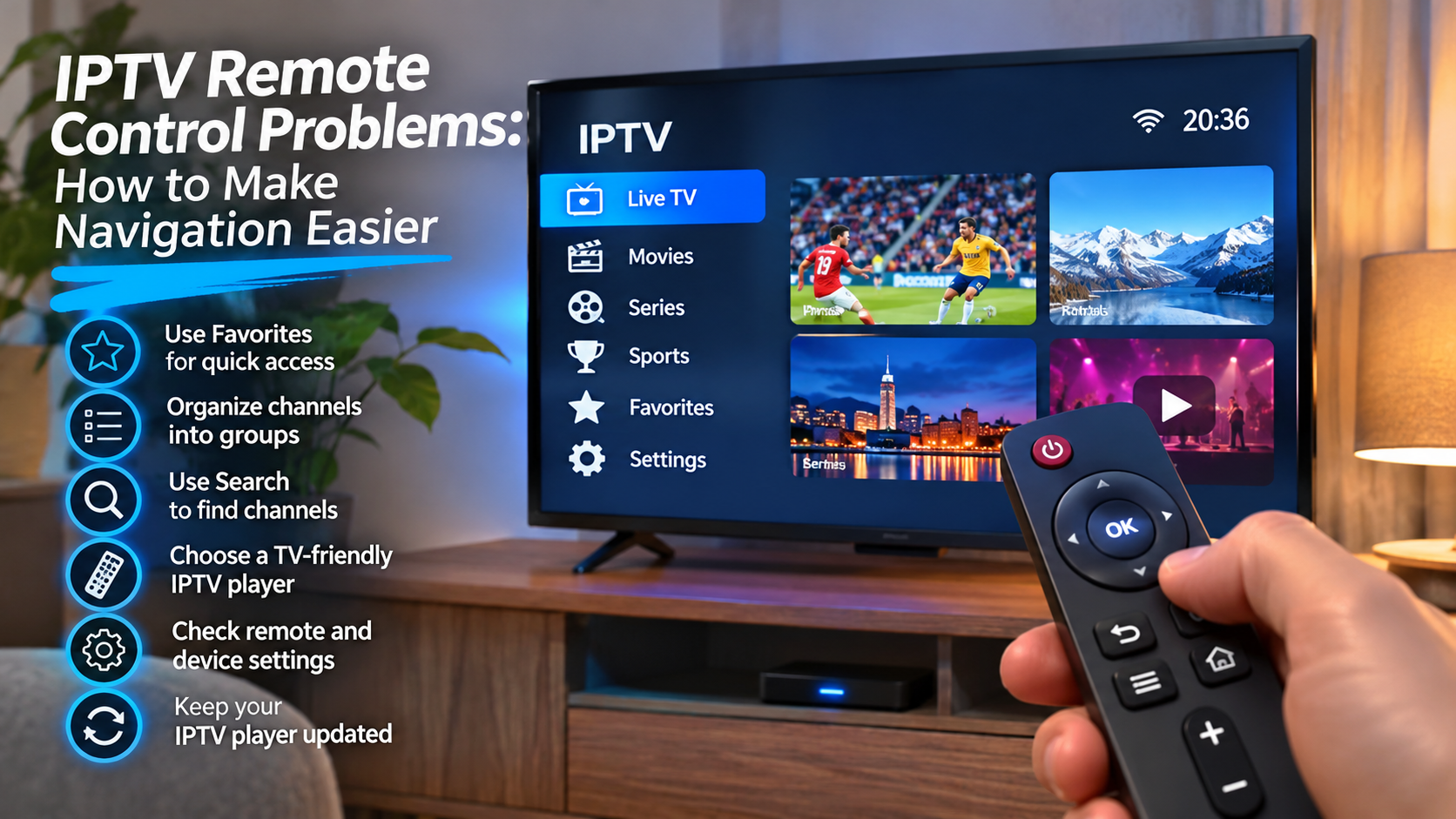

A good IPTV setup can quickly become annoying when the remote control does not behave the way you expect. Channels may take too long to open, the back button might close the application instead of returning to the previous menu, or navigation may feel awkward on an IPTV player that was originally designed for a touchscreen.
These problems are especially common when IPTV is used across Smart TVs, Android boxes, Google TV devices, Apple TV, and other streaming hardware. The good news is that many remote-control issues can be improved without replacing the television or changing the IPTV service.
The key is choosing an IPTV player that is designed for the device you actually use.
Why IPTV Remote Controls Behave Differently
An IPTV application does not control the physical remote itself. The operating system of the television or streaming device interprets each button press and then passes that command to the application.
This means the same IPTV player can behave differently on:
-
Samsung Smart TV
-
LG Smart TV
-
Android TV
-
Google TV
-
Apple TV
-
Fire TV
-
Dedicated IPTV boxes
A button that opens a menu on one device may perform another action on a different platform.
That is why remote compatibility should be considered when choosing an IPTV application.
Start With the Basic Navigation Buttons
For most television-based IPTV players, a few buttons are used constantly:
-
Up
-
Down
-
Left
-
Right
-
OK or Select
-
Back
-
Home
-
Menu
If these controls work smoothly, everyday IPTV navigation becomes much easier.
Problems usually become noticeable when the application requires touchscreen gestures, mouse input, or unusual button combinations.
A television-focused IPTV player should be usable from the sofa without needing a keyboard or phone for basic tasks.
The Back Button Is Often the Most Confusing
The Back button can behave differently between players.
Depending on the application, pressing Back may:
-
Return to the channel list
-
Close the current stream
-
Open a previous menu
-
Exit the IPTV application completely
If you repeatedly close the player by accident, check the application's navigation settings.
Some players allow you to choose how the Back button behaves during live television.
Learning this one control can make a surprisingly large difference.
Use Favorites to Reduce Remote Navigation
A remote becomes frustrating when you have to scroll through hundreds of channels.
Instead of navigating the complete playlist every time, create a favorites section.
For a Nordic household, that might include:
-
Swedish channels
-
Nordic entertainment
-
News
-
Sports
-
Movies
-
Children's channels
A small favorites list means fewer button presses and faster access to the channels you actually watch.
Channel Groups Can Save Even More Time
Favorites are useful, but channel groups can make larger IPTV libraries easier to manage.
For example, instead of scrolling through one long list, the player may separate content into:
Sports
Football, hockey, motorsport, tennis, and other sports channels.
Nordic TV
Swedish, Norwegian, Danish, and Finnish television.
Entertainment
General entertainment and lifestyle channels.
News
Local and international news.
Kids
Children's programming.
The fewer unnecessary categories you keep visible, the easier remote navigation becomes.
Choose a Player Designed for a Television Screen
Some IPTV applications started as mobile apps and were later adapted for larger displays.
That does not always produce a good television interface.
Signs of a TV-friendly player include:
-
Large buttons
-
Clear highlighting
-
Simple menus
-
Easy channel switching
-
Remote-friendly EPG
-
Visible focus indicators
-
Logical Back-button behavior
You should always be able to tell which menu item is currently selected.
If the highlight is difficult to see from across the room, the interface may not be ideal for regular TV use.
Smart TV Remotes Can Be Very Minimal
Modern Smart TVs often come with simplified remotes containing only a handful of buttons.
That looks clean, but it can make IPTV navigation less obvious.
For example, a modern remote may not include dedicated:
-
Channel buttons
-
Number buttons
-
Menu buttons
-
Playback controls
In these cases, the IPTV application needs to work well with directional controls and on-screen menus.
Before committing to one player, spend a little time testing live TV, favorites, EPG, and settings with your normal remote.
Android TV Offers More Control Options
Android TV and Google TV devices usually work with standard directional remotes.
Many IPTV applications are designed specifically around this input method.
Depending on the player, the remote may provide shortcuts for:
-
Opening the EPG
-
Switching channel groups
-
Returning to live TV
-
Opening favorites
-
Accessing playback controls
Some Android boxes also support third-party Bluetooth remotes.
This can be useful if the original remote is uncomfortable or has poor button placement.
Apple TV Navigation Feels Different
Apple TV uses its own remote design and tvOS navigation system.
Some users enjoy the touch-sensitive controls, while others need time to adjust.
A well-designed IPTV application for Apple TV should make it easy to:
-
Browse channels
-
Open program information
-
Switch categories
-
Return to previous screens
-
Control playback
If an IPTV application technically supports Apple TV but feels awkward with the remote, testing another compatible player may provide a better experience.
Consider a Remote With Number Buttons
Traditional television viewers often prefer entering a channel number directly.
Not every IPTV player supports numerical channel selection, but some do.
If this is important to you, check whether both the player and remote support it.
A remote with number buttons can be particularly useful for people who already know the positions of their favorite channels.
However, favorites and search are usually faster when playlists change frequently.
Search Can Replace a Lot of Scrolling
A search function is especially useful when the playlist contains many channels.
Instead of scrolling through several categories, type part of the channel or program name.
Some streaming devices also support voice search.
This can be convenient, although voice search may not work inside every IPTV application.
If voice input is important, test it before relying on it as your main navigation method.
Bluetooth Remotes Can Be More Reliable
Some inexpensive streaming boxes include basic infrared remotes.
Infrared usually requires the remote to be pointed toward the device.
Bluetooth remotes do not normally require direct line of sight.
That can be useful when the streaming box is:
-
Behind the television
-
Inside an open media cabinet
-
Mounted out of sight
Before buying another remote, confirm that the device supports Bluetooth accessories.
Check the Batteries Before Troubleshooting the App
This sounds obvious, but weak batteries can create strange remote behavior.
You may notice:
-
Delayed button presses
-
Missed commands
-
Double inputs
-
Intermittent control
Before changing IPTV settings, replace or recharge the remote batteries.
If the problem disappears, the application was never the issue.
Restart the Remote and Streaming Device
Bluetooth remotes can occasionally lose a stable connection.
If buttons stop responding properly:
-
Restart the streaming device.
-
Check the remote battery level.
-
Reconnect or pair the remote again if necessary.
-
Test the IPTV application afterward.
If the remote behaves badly in every application, the problem is probably not specific to IPTV.
Check Whether the Problem Exists Outside IPTV
This is an important troubleshooting step.
Open another application and test the same buttons.
If the remote works perfectly in YouTube or another streaming app but behaves strangely only inside the IPTV player, the IPTV application is more likely to be responsible.
If the remote is slow everywhere, look at the device or remote itself.
This simple comparison can save a lot of time.
Remote Lag Can Actually Be Device Lag
Sometimes the remote is working correctly but the streaming box is slow.
Older or low-powered hardware can take longer to respond when:
-
The playlist is very large
-
EPG data is loading
-
Storage is almost full
-
Many apps are open
-
The device is overheating
If every button press eventually works but feels delayed, restart the device and close unnecessary applications.
Check available storage as well.
Large EPG Files Can Slow Menus
An Electronic Program Guide is useful, but very large guide files can affect weaker devices.
If navigation becomes slow immediately after the EPG updates, the IPTV player may be processing a large amount of data.
Some applications allow you to reduce:
-
Number of EPG days
-
Unused channel categories
-
Cached guide information
Do not disable useful features unnecessarily, but keep the configuration appropriate for the hardware.
Use Long-Press Shortcuts Where Available
Some IPTV players use long presses to access secondary options.
For example, holding the OK button may open:
-
Channel information
-
Favorites menu
-
EPG
-
Audio options
-
Subtitle settings
This can be faster than navigating through several menus.
The exact shortcuts differ between players, so check the application's help or settings section.
Nordic IPTV Users Should Consider Device Compatibility
A good IPTV experience depends on more than the channel list itself. The player must also work comfortably with the television, streaming device, and remote control being used.
People researching Nordic television options and compatible streaming devices may come across Nordic IPTV King while comparing IPTV-related services and setup information for Sweden and the wider Nordic region.
Whatever service you choose, test the interface on your actual device before deciding that a particular player is right for everyday use.
Universal Remotes Can Simplify the Living Room
Some households end up with separate remotes for:
-
Television
-
Streaming box
-
Soundbar
-
IPTV device
A compatible universal remote can sometimes reduce that clutter.
Before buying one, check support for your specific television and streaming hardware.
Not every universal remote can control every IPTV box or application equally well.
HDMI-CEC May Let One Remote Control Several Devices
Many modern TVs and streaming devices support HDMI-CEC.
Manufacturers sometimes give this feature different names.
When compatible, it can allow one remote to control basic functions across connected equipment.
For example, the streaming-device remote may also control:
-
TV power
-
Volume
-
Input switching
This can make the IPTV setup feel much simpler.
If it does not work automatically, check HDMI control settings on both devices.
Avoid Overcomplicating the Interface
Many IPTV players include extensive customization options.
That can be useful, but a heavily customized interface is not always easier to use.
For a shared household, simple navigation usually works better.
Keep the most important areas easy to reach:
-
Live TV
-
Favorites
-
EPG
-
Movies
-
Series
-
Search
Hide categories nobody uses.
The goal is to reduce the number of steps required to start watching.
Make the Setup Easy for Everyone
A technically advanced setup is not very useful if only one person in the household knows how to operate it.
Once the IPTV player is configured, show other users how to:
-
Open favorites
-
Return to live TV
-
Search for a channel
-
Open the guide
-
Change subtitles
-
Exit the application
This is particularly useful for children and older family members.
Keep the IPTV Player Updated
Navigation problems can sometimes be software bugs.
Updates may improve:
-
Remote compatibility
-
Menu responsiveness
-
Focus highlighting
-
Device support
-
EPG navigation
Use supported versions from trusted sources.
If an update makes the application noticeably worse, check the developer's documentation before changing unrelated device settings.
When Another IPTV Player Makes Sense
There is no reason to remain with a player that feels uncomfortable to use.
If your current application constantly requires awkward button combinations or responds poorly to the remote, test another compatible option.
Compare:
-
Channel switching
-
Favorites
-
Search
-
EPG navigation
-
Subtitle controls
-
Menu speed
The best IPTV player is not necessarily the one with the longest feature list. It is the one that feels natural on your device.
Keep Content Access Legitimate
Remote-control and player compatibility have nothing to do with whether specific television content is properly licensed.
Use legitimate IPTV and streaming services with appropriate distribution rights and follow applicable copyright laws and service terms.
Final Thoughts
Remote-control problems can make an otherwise good IPTV setup feel unnecessarily complicated.
Before replacing hardware, determine whether the issue comes from the remote, streaming device, or IPTV player.
Start with simple checks such as batteries, pairing, device performance, and application updates. Then organize favorites, remove unnecessary categories, and learn the player's useful shortcuts.
A television-focused IPTV application with clear menus and reliable remote support can make everyday viewing much easier, especially in households where several people use the same setup.


