


The Complete Guide to Backing Up Your Google Contacts Safely
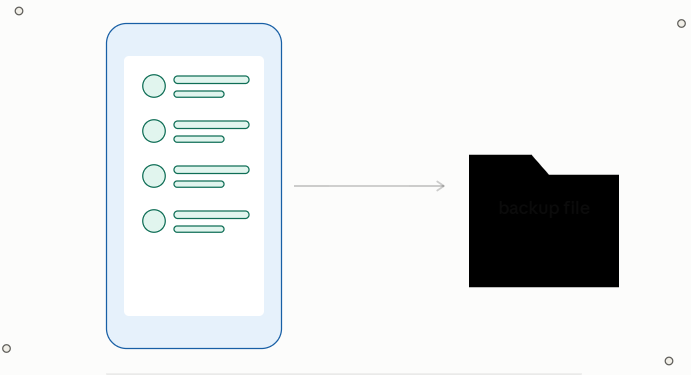
Losing access to your contact list can bring both personal and professional communication to a standstill. Whether it's a client's phone number, a colleague's email, or a family member's details, your Google Contacts hold information that's difficult — sometimes impossible — to reconstruct from memory. That's why understanding how to back up, protect, and restore your Google Contacts is essential for anyone who relies on Gmail for daily communication.
In this guide, we'll walk through why backups matter, the built-in options Google provides, their limitations, and smarter alternatives for keeping your contact data safe.
Why Backing Up Google Contacts Matters
Google Contacts syncs seamlessly across devices, which is exactly why many users assume it's automatically protected. In reality, sync isn't the same as backup. If a contact is accidentally deleted, overwritten, or corrupted, that change syncs across every connected device just as quickly as any other update — meaning the "safety" of the cloud can actually spread data loss rather than prevent it.
Common situations where a backup becomes critical include:
-
Switching Google accounts — moving from a personal to a business account, or vice versa
-
Changing email clients — migrating away from Gmail to another platform
-
Device failure or loss — a phone or laptop that stops working unexpectedly
-
Accidental deletion — bulk edits, sync errors, or human error wiping out contact groups
-
Security and privacy concerns — businesses wanting sensitive contact lists stored locally rather than solely in the cloud
For professionals and businesses, contacts often represent years of relationship-building. A single sync error or an accidental "select all and delete" can erase that history in seconds, making regular backups a non-negotiable part of good data hygiene.
Google's Built-In Backup Options
Before looking at third-party tools, it's worth understanding what Google offers natively — and where those options fall short.
Automatic Backup on Android
If your Android device is linked to a Gmail account, Google automatically backs up your contacts to Google Drive by default. You can check or adjust this setting by going to your device's Settings > System > Backup, then toggling "Back up to Google Drive" on or off.
This is convenient, but it comes with a major caveat: Google typically retains deleted contact data for only around 30 days. After that window closes, recovery through this method is no longer possible.
Manual Export via Google Contacts
On a computer, Google allows users to manually export their contacts in CSV or vCard format:
-
Open Google Contacts in your browser
-
Select Export from the left-hand menu
-
Choose specific contacts or select all
-
Pick your preferred format (Google CSV, Outlook CSV, or vCard)
-
Click Export to download the file
This method works, but it's manual by nature — meaning it only protects your data at the exact moment you remember to run it. Miss a week, and any changes made since your last export are unprotected.
Where Manual Methods Fall Short
While Google's native options are free and accessible, they have real limitations for anyone managing a large or business-critical contact list:
-
No ongoing protection — exports are a one-time snapshot, not a continuous backup
-
Limited retention window — the 30-day recovery period on Android leaves a narrow margin for error
-
Format restrictions — CSV and vCard exports don't always preserve every field or integrate smoothly with other backup formats like PST, MBOX, or EML
-
Time-consuming for bulk data — exporting and organizing large contact lists manually can be tedious and error-prone
For casual users with a handful of contacts, the built-in tools are usually sufficient. But for businesses, freelancers, or anyone whose work depends on uninterrupted access to their network, these gaps can become costly.
A More Reliable Approach: Dedicated Backup Software
This is where a purpose-built solution earns its place in your workflow. Rather than relying on manual exports and hoping nothing goes wrong in between, many professionals turn to a dedicated Gmail Email Backup Tool that can save contacts, emails, calendars, and documents together in formats like PST, MBOX, EML, and VCF — giving you a complete, portable copy of your Google data that isn't tied to a single retention window.
The advantage of this approach is consistency. Instead of remembering to export contacts every few weeks, a dedicated tool lets you schedule and automate the process, ensuring that even recent changes are captured before something goes wrong. It also typically supports both individual Gmail accounts and G Suite/Google Workspace environments, making it suitable for teams as well as solo users.
What to Do If You've Already Lost Contacts
If you're reading this after already losing data rather than before, don't panic — recovery may still be possible depending on how recently the contacts were deleted. Google keeps a temporary trash folder for contacts, and understanding the steps for How to recover deleted Google Contacts can mean the difference between a quick fix and starting from scratch. Generally, checking the "Trash" section within Google Contacts first is the fastest route, since deleted entries are held there for a limited time before being permanently removed.
If the standard recovery window has already passed, your best option is restoring from whichever backup you created earlier — another reason a proactive backup habit pays off far more than reactive troubleshooting.
Best Practices for Protecting Your Contacts Long-Term
To avoid finding yourself in a data-loss situation in the first place, consider building these habits into your routine:
-
Set a recurring reminder to export or back up contacts monthly, even if you use automatic syncing
-
Store backups in more than one location — locally and in a separate cloud service
-
Use a consistent file format so restoring data later is straightforward
-
Separate personal and business contacts where possible, to reduce the risk of bulk errors affecting both
-
Test your backup occasionally by confirming the exported file actually opens and contains complete data
These small, consistent actions are far less painful than attempting to reconstruct a contact list after the fact.
Final Thoughts
Google Contacts is a convenient, cloud-based system — but convenience isn't the same as protection. Sync errors, accidental deletions, and account changes can all put your contact data at risk, and Google's built-in recovery window is shorter than most people realize. Combining periodic manual exports with a dependable backup routine, or a dedicated backup tool for ongoing protection, gives you the best chance of never losing access to the people and contacts that matter most to your work.
Frequently Asked Questions
Q1. How often should I back up my Google Contacts?
For personal use, a monthly export is usually sufficient. Businesses or heavy users should consider automated, more frequent backups.
Q2. Is there a limit to how many contacts I can back up?
No — you can back up contacts from multiple Gmail accounts without a file size restriction.
Q3. What file formats can Google Contacts be exported to?
Google's native export supports CSV and vCard formats, while dedicated backup tools often add support for PST, MBOX, EML, and MSG as well.
Q4. Can I recover contacts deleted more than 30 days ago?
Not through Google's built-in trash. At that point, restoring from a personal backup is typically the only option.

 English
 Arabic
 French
 Portuguese
 Deutsch
 Turkish
 Dutch
Dutch
 Italiano
 Russian
 Romaian
 Portuguese (Brazil)
 Greek
Greek