CSV files are widely used for storing and transferring tabular data. However, when a CSV file contains millions of rows, repeated values, long text fields, or unnecessary columns, its size can become difficult to manage. Large CSV files may take longer to upload, download, transfer, or process.
If you are looking for how to compress CSV files, there are several approaches depending on whether you want to reduce the file size for storage and transfer or permanently reduce the amount of data inside the CSV.
This guide explains different ways to compress CSV files, including ZIP compression, removing unnecessary data, splitting large CSV files, and other practical methods.
What Does It Mean to Compress a CSV File?
Compressing a CSV file generally means reducing the amount of storage space required by the file.
There are two common approaches:
- Compress the CSV into a ZIP or similar archive without changing the original data.
- Reduce the CSV's actual size by removing unnecessary rows, columns, duplicate records, or excessive data.
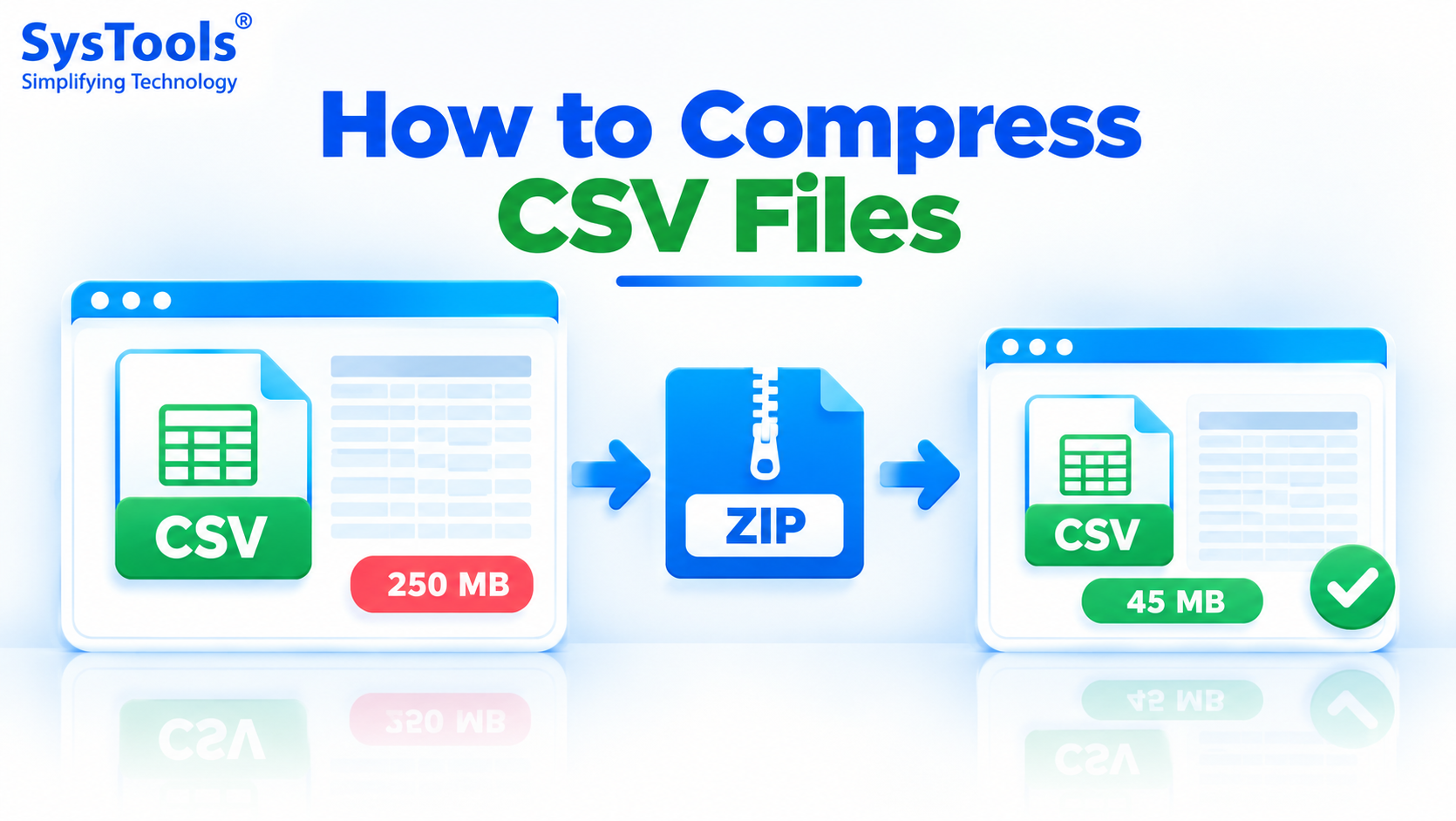
For example, a 500 MB CSV file may become significantly smaller when compressed into a ZIP archive. The original CSV data remains unchanged and can be extracted whenever required.
Why Compress Large CSV Files?
Large CSV files can create several practical problems. Compressing them can help with:
- Reducing storage requirements
- Making file transfers faster
- Saving bandwidth
- Making email or cloud uploads easier
- Reducing backup storage
- Organizing large datasets
- Improving file-sharing efficiency
- Handling CSV files with millions of records more conveniently
However, the best method depends on whether you need to preserve all data or actually remove unnecessary information.
5 Ways to Compress CSV Files
There are several ways to reduce the size of a CSV file. Let's look at them one by one.
1. Compress CSV File Using ZIP
The simplest way to compress a CSV file without changing its contents is to create a ZIP archive.
Since CSV files are plain-text files, they often contain repeated patterns, separators, and values that compression algorithms can reduce efficiently.
Steps to Compress a CSV File on Windows
- Locate the CSV file on your computer.
- Right-click the CSV file.
- Select Compress to ZIP file or Send to > Compressed (zipped) folder, depending on your Windows version.
- Windows creates a
.zip file containing the CSV.
- Rename the ZIP file if required.
The original CSV remains unchanged.
When Should You Use ZIP Compression?
ZIP compression is useful when you:
- Need to preserve the original CSV
- Want to transfer a large CSV
- Need to reduce storage space
- Want to share a CSV through cloud storage
- Don't want to modify the actual data
2. Remove Unnecessary Columns
Another way to compress a CSV file is to remove columns that are not required.
For example, a CSV may contain:
If the file is only being used for email analysis, columns such as phone numbers, addresses, and internal notes may not be necessary.
Removing unused columns can reduce the actual CSV file size.
Important
Always create a backup before deleting columns from an important dataset. Once information is removed and the file is saved, recovering it may require restoring the original copy.
3. Remove Unnecessary Rows
CSV files can also become unnecessarily large because they contain old or irrelevant records.
For example, a company may have a CSV containing ten years of transaction data when only the last two years are required.
You can create a smaller CSV containing only the required records.
For example:
Original CSV:
5,000,000 records
Required data:
1,500,000 records
Removing the unused records can substantially reduce the actual file size.
This approach is different from ZIP compression because the data itself is being removed.
Sometimes the goal isn't to compress the data but to make a very large CSV easier to manage.
For example:
Large CSV: 4 GB
Instead of working with one huge file, you can split it into smaller files:
- Part 1 — 500 MB
- Part 2 — 500 MB
- Part 3 — 500 MB
- Part 4 — 500 MB
- Part 5 — 500 MB
- Part 6 — 500 MB
- Part 7 — 500 MB
- Part 8 — 500 MB
This does not technically compress the total data size. Instead, it makes the dataset easier to open, transfer, process, and manage.
For particularly large CSV files, splitting can be more practical than trying to work with the entire file at once.
5. Use CSV Compression Tools
For large datasets, manually editing a CSV can become time-consuming. A dedicated CSV utility can help with operations such as splitting large files into smaller parts without repeatedly opening the complete dataset in a spreadsheet application.
This can be useful when a CSV is too large for Excel or another conventional application to handle comfortably.
For example, SysTools CSV Splitter can divide large CSV files based on the required number of rows or parts while retaining the CSV structure.
However, remember that splitting is not the same as compression. If your objective is specifically to reduce storage space, ZIP or another compression format is generally the appropriate approach. If your objective is to make a huge CSV easier to handle, splitting can be useful.
Tips Before Compressing a Large CSV File
Before making changes to a large CSV, keep these points in mind:
- Create a backup of the original CSV.
- Determine whether all rows are required.
- Check whether unnecessary columns can be removed.
- Look for duplicate records.
- Avoid opening extremely large CSV files unnecessarily.
- Use ZIP compression when you need to preserve the complete dataset.
- Verify the compressed archive after creation.
- Keep the original file until you confirm that the compressed version works correctly.
Final Thoughts
Learning how to compress CSV files can make large datasets easier to store, transfer, and manage. If you need to preserve the complete CSV, creating a ZIP archive is the simplest approach. If the CSV contains unnecessary records or columns, cleaning the dataset can reduce its actual size.
For very large CSV files that are difficult to process, splitting the file into smaller parts can also make everyday data management easier. The right approach ultimately depends on whether your priority is saving storage space, preserving all data, or making a large CSV easier to handle.




 English
 Arabic
 French
 Spanish
 Portuguese
 Deutsch
 Turkish
 Dutch
Dutch
 Italiano
 Russian
 Portuguese (Brazil)
 Greek
Greek