


EZCAD Download: A Practical Guide to Laser Marking Software
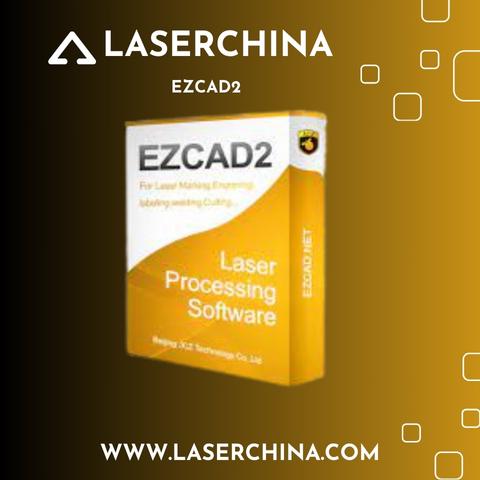
EZCAD is widely used with compatible laser marking machines to create precise text, logos, serial numbers, barcodes, QR codes, and graphics on different materials. For manufacturers, workshop owners, and engraving professionals, finding the correct ezcad download is an important step toward setting up an efficient laser marking system.
The software allows users to prepare marking designs, adjust parameters, and send jobs to compatible laser equipment. Whether you are marking stainless steel, aluminum, brass, or other suitable materials, EZCAD can support a variety of industrial and commercial marking applications.
What Is EZCAD Used For?
EZCAD is a laser marking software platform commonly associated with compatible fiber laser marking machines and certain other laser systems. It provides tools for creating designs and controlling marking tasks through supported hardware.
Common applications include:
-
Industrial product identification: Mark model numbers, product codes, and manufacturing information.
-
Metal engraving: Create text, logos, and decorative graphics on compatible metal surfaces.
-
Serial number marking: Add identification numbers to components and finished products.
-
Barcode and QR code marking: Prepare machine-readable codes for product tracking and inventory management.
-
Personalized engraving: Produce names, symbols, and custom designs for gifts, accessories, and promotional products.
The exact capabilities depend on the EZCAD version, connected controller, laser source, and machine configuration.
How to Find the Correct EZCAD Download
Before installing EZCAD, identify the software version supported by your laser marking machine. Different versions may require different controllers, drivers, and system configurations. Installing an incompatible package can prevent the software from communicating correctly with the machine.
For a reliable ezcad download, follow these steps:
-
Identify your machine controller: Check the controller model and manufacturer documentation.
-
Confirm software compatibility: Ask your machine supplier which EZCAD version is supported.
-
Use a trusted source: Obtain the installer from your machine manufacturer or an authorized supplier.
-
Check installation requirements: Review the recommended Windows version, drivers, and hardware connections.
-
Keep a backup: Save the original installer, configuration files, and machine parameters in a secure location.
Avoid unfamiliar download websites that offer modified installers or bundled programs. A verified installation package helps reduce software compatibility and security risks.
Installing and Setting Up EZCAD
Once you have obtained the correct installation package, prepare your computer for setup. Close unnecessary applications and follow the installation instructions provided by your machine supplier.
Depending on your system, installation may require a supported USB or other hardware driver. Connect the machine only as instructed in its documentation, and verify that the software recognizes the controller before attempting a marking job.
After installation, review the configuration settings carefully. These may include the marking field size, correction file, laser parameters, and controller communication settings. Incorrect values can result in misplaced designs, inaccurate dimensions, or inconsistent marking results.
If you are installing EZCAD for the first time, ask your equipment supplier for the appropriate configuration files and setup instructions rather than copying settings from an unrelated machine.
Preparing Your First Laser Marking Design
EZCAD provides tools for preparing designs that can be sent to compatible laser marking equipment. Depending on the version and configuration, users can work with text, shapes, vector graphics, and other supported design elements.
To prepare a marking job:
-
Create a simple text or graphic design.
-
Confirm the design dimensions and position within the marking area.
-
Check the machine's focus and workpiece placement.
-
Select suitable marking parameters according to the material and application.
-
Use the machine's approved preview or positioning procedure before starting the job.
-
Test the settings on a sample piece before processing valuable or production materials.
Laser power, speed, frequency, and other parameters should be selected according to the laser source, material, and desired marking result. There is no single parameter combination suitable for every application.
Common EZCAD Installation Problems
Users may occasionally encounter issues after installing the software. Understanding the likely causes can make troubleshooting easier.
Software does not detect the machine: Check the controller connection, driver installation, and compatibility between the software version and controller.
The software fails to open: Confirm that the installed version supports your operating system and that the installation completed correctly.
Marking dimensions are inaccurate: Verify the marking field settings and the correction file supplied for your machine.
The laser does not mark the material: Check the machine's operating status, focus, parameter settings, and safety interlocks according to the manufacturer's instructions.
If the problem persists, contact the machine supplier with the controller model, software version, and a description of the issue.
Safety Considerations When Using EZCAD
Software setup is only one part of operating a laser marking machine safely. Many fiber laser systems use invisible laser radiation that can cause serious eye or skin injuries. Reflections from metal surfaces can also create hazards.
Operate the equipment only with the appropriate laser safety enclosure, wavelength-rated protective measures, and interlocks specified by the manufacturer. Follow the machine's operating manual, use suitable fume extraction where required, and never bypass safety systems to complete a marking job.
Before beginning production, make sure the operator understands the machine's emergency stop procedure and the safety requirements for the materials being processed.
Final Thoughts
Finding the correct ezcad download is essential for establishing a dependable workflow with a compatible laser marking machine. By verifying the controller model, obtaining the installer from a trusted source, and following the manufacturer's setup instructions, users can reduce installation problems and prepare their equipment for accurate marking work.
For the best results, confirm software compatibility with your machine supplier before installation. Proper configuration, suitable marking parameters, and consistent safety practices will help you build a reliable laser marking process for industrial production, product identification, and custom engraving.

 English
 Arabic
 French
 Portuguese
 Deutsch
 Turkish
 Dutch
Dutch
 Italiano
 Russian
 Romaian
 Portuguese (Brazil)
 Greek
Greek