


How to Recover Outlook Data File Password? Effective Methods
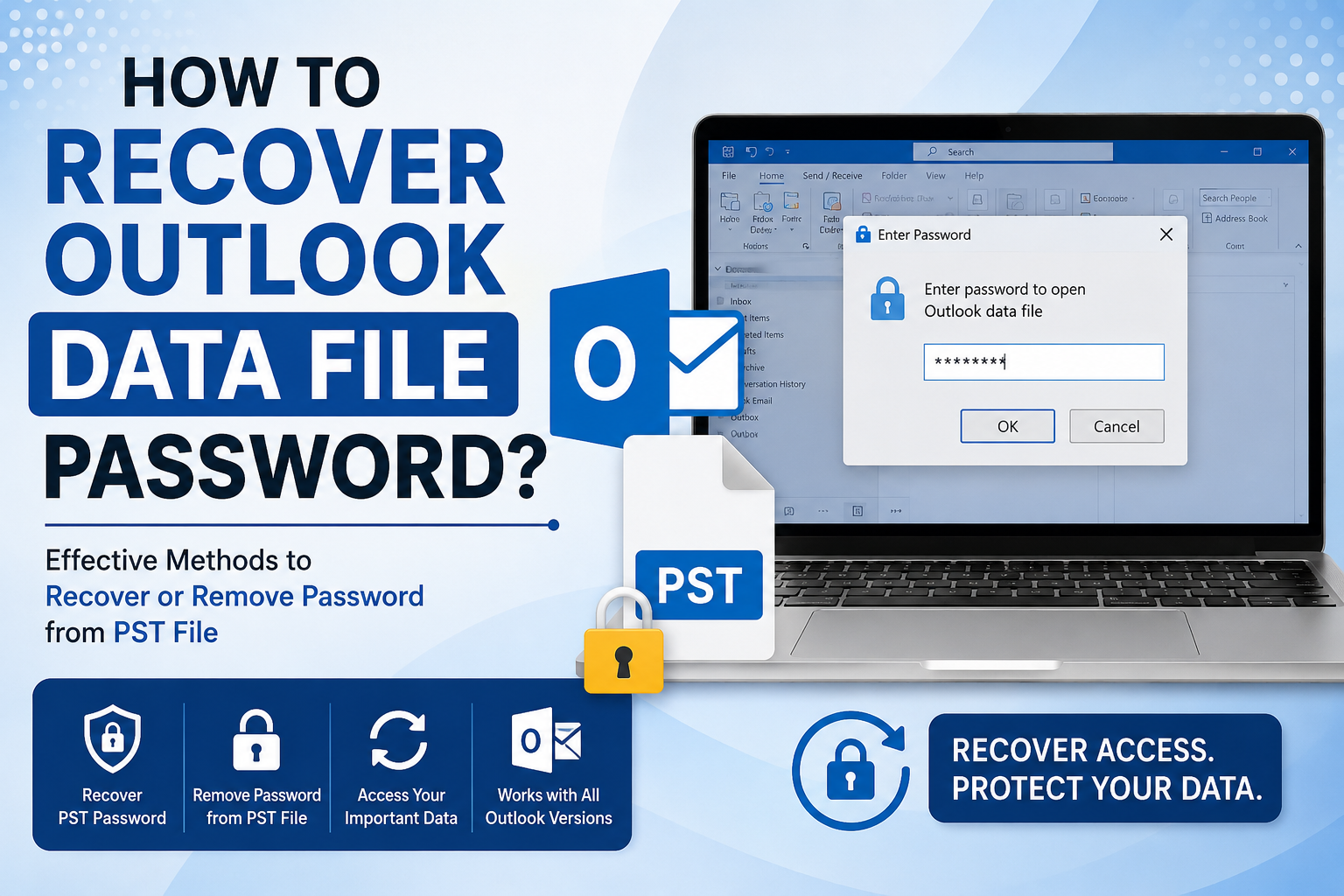
Forgetting an Outlook data file password can prevent access to emails, contacts, calendars, and other important mailbox data stored in a PST file. If you are searching for how to recover Outlook data file password, there are several approaches you can try depending on the Outlook version and the condition of the PST file. Before proceeding, users should understand that Outlook does not provide a direct option to display or retrieve a forgotten PST password. However, some manual workarounds and professional solutions can help regain access. If your goal is to remove password from PST file, you can also explore dedicated password-recovery software for a more reliable approach.
Common Reasons for Recovering an Outlook Data File Password
There are several situations in which users may need to recover or remove a PST password:
-
The PST password was forgotten after a long period of inactivity.
-
An old Outlook data file needs to be opened on another computer.
-
The password was created by another user who is no longer available.
-
A previously protected PST file needs to be accessed for data migration.
-
Users want to open an archived PST file but cannot remember its password.
-
Multiple old PST files have different passwords that are no longer known.
Method 1: Try Previously Used or Common Passwords
The simplest approach is to recall passwords that may have been used when the PST file was created.
Think about passwords commonly used during the period when the PST was configured. Check whether you used variations involving names, dates, numbers, initials, or commonly used combinations.
However, avoid repeatedly entering random passwords because this approach can become time-consuming, particularly when several PST files are involved.
This method is useful only when you have a reasonable idea of what the original password might have been.
Method 2: Check Whether the PST Opens in an Existing Outlook Profile
Sometimes a PST file may already be associated with an Outlook profile on a computer where it was previously configured.
Open Outlook and check the available data files under the account or profile settings. If the PST is already accessible without prompting for a password, you may be able to access its contents and export the required data. To check the data file settings, follow the steps:
-
Open Microsoft Outlook.
-
Go to File and select Account Settings.
-
Select Account Settings again.
-
Open the Data Files tab.
-
Locate the required PST file.
-
Check whether Outlook can access the file without requesting the password.
-
If accessible, export or copy the required mailbox data.
Method 3: How to Recover PST File Password Using Professional Software?
When manual approaches fail, a dedicated PST password recovery utility can be considered. Professional software is particularly useful when the password is completely forgotten and the PST cannot be accessed normally. One such solution is SysTools PST Password Recovery, which is designed to help users recover or remove password protection from Outlook PST files. This tool provides an automated approach for users who need to regain access to password-protected Outlook data files without relying on repeated manual password attempts.
Steps to Use the Tool
-
Install and launch the software on your computer
-
Browse and select the protected PST file.
-
Start the password recovery process.
-
View the recovered or removed password information.
-
Open the unlocked PST in Microsoft Outlook.
How to Recover Outlook Data File Password Safely? Pro Tips
Password recovery should always be performed carefully because PST files may contain important personal or business information. Follow these precautions:
-
Always keep a backup of the original PST file.
-
Use a copy of the PST whenever possible.
-
Avoid modifying the original file unnecessarily.
-
Do not download unknown utilities from untrusted sources.
-
Verify that the recovery software supports your PST file.
-
Store recovered passwords securely.
-
After regaining access, consider removing unnecessary password protection.
Conclusion
In this article, we covered how to recover Outlook data file password using different approaches, including trying previously used passwords, checking an existing Outlook profile, creating a new PST, and using professional PST password recovery software. Manual approaches can be useful when the PST remains accessible, but they have limitations when the password is completely forgotten. For such situations, using the recovery tool provides an automated approach for recovering access to password-protected Outlook PST files.

 English
 Arabic
 French
 Spanish
 Portuguese
 Deutsch
 Turkish
 Dutch
Dutch
 Italiano
 Russian
 Portuguese (Brazil)
 Greek
Greek