


How to Merge Calendars on Mac? Top Solutions
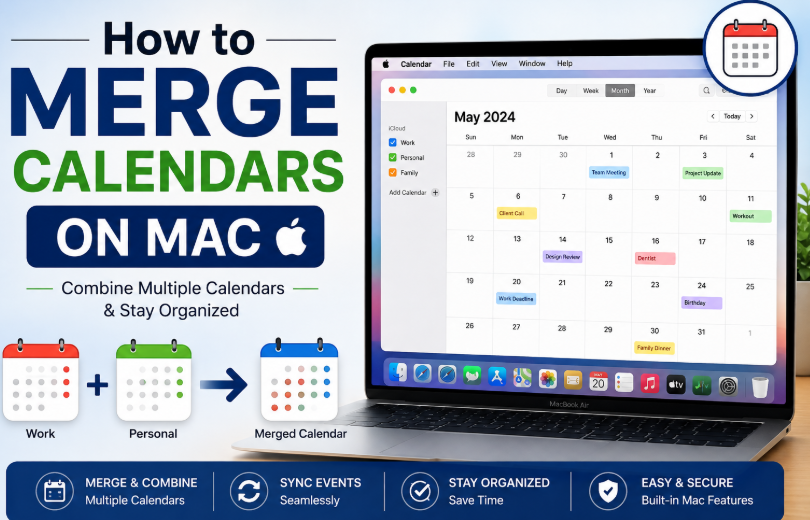
Managing multiple calendars on a Mac can quickly become messy, especially when you have personal, work, family, and shared schedules spread across different accounts or saved as separate calendar files. That is why many users look for reliable ways to learn how to merge calendars on Mac without losing events, reminders, or important meeting details.
Whether you want to combine two Apple Calendar lists, join imported schedules, or organize scattered calendar entries into one place, there are several practical methods available.
In this guide, you will learn how to combine calendars on Mac using built-in options, manual exporting and importing, and an automated solution for handling larger or more complex calendar data.
Why Do Users Need to Merge Calendars on Mac?
There are many reasons Mac users want to combine calendar data into one place. Some common situations include:
-
Separate calendars for work and personal events.
-
Duplicate calendar lists were created by mistake.
-
Multiple ICS files were collected from different sources.
-
Switching from one account to another.
-
Consolidating project or team schedules.
-
Backing up events into a single unified calendar.
When calendars remain split across accounts or files, it becomes difficult to check availability, manage deadlines, or avoid overlapping events. Understanding how to merge calendars on Mac helps users simplify scheduling and improve overall calendar organization.
Method 1: How to Merge Calendars on Mac through Apple Calendar App
One of the easiest ways to combine events is by using the Calendar app already available on macOS. This method works well when both calendars are already visible in Apple Calendar. The steps are:
-
Open the Calendar app on your Mac.
-
In the sidebar, locate the calendars you want to combine.
-
Click the first calendar to view its events.
-
Select the events you want to move.
-
For a few events, hold the Command key and click multiple entries.
-
For larger sets, switch to list or month view for easier selection.
Drag the selected events from one calendar to the destination calendar in the sidebar.
Repeat the process until all desired events are moved.
Once verified, delete the old calendar if no longer needed.
This is a direct answer to merge calendars on Mac when dealing with small or moderate numbers of events.
Method 2: Export and Import Calendar Data on Mac
Another effective way to handle how to merge calendars on Mac is by exporting one calendar and importing it into another. This is especially useful if you want to preserve events in file format before combining them. The steps are:
-
Open the Calendar app.
-
Select the calendar you want to merge.
-
Click File > Export > Export.
-
Save the calendar as an ICS file.
-
Now select the destination calendar or create a new one.
-
Click File > Import.
-
Browse to the saved ICS file.
-
Choose the destination calendar where the events should be added.
-
Complete the import process.
This method works well for users looking into how to combine calendars on Mac while keeping a backup copy of the original calendar data.
Method 3: How to Merge Calendars on Mac? Expert Way
For users searching for a faster and more advanced solution, the SysTools ICS Merger Tool is an effective automated technology. It is especially useful when you need to merge multiple ICS files without manually importing each one into Apple Calendar. This tool is designed to combine ICS calendar files into a single output, making calendar management simpler and more organized. It helps users save time and reduce the effort involved in handling multiple calendar sources.
-
Merge multiple ICS files into one combined file
-
Reduce manual effort and repetitive imports
-
Help organize scattered calendar entries
-
Maintain calendar event details during the merge process
-
Support bulk calendar consolidation for personal or professional use
For anyone seriously researching how to merge calendars on Mac, this automated approach can be one of the most effective solutions.
Detailed Steps to Use this Software
-
Install and launch the Tool on your system.
-
Then, choose the " Merge ICS file option from the tab
-
After that, add the ICS file through the " Add file or Add folder option
-
Preview the selected file set if the tool provides preview support.
-
Choose the merge option and select the desired output settings.
-
At last, start the merging process.
Final Thoughts
Learning how to merge calendars on Mac is essential for anyone who wants better control over their scheduling data. Whether you are trying to combine personal and work calendars, organize imported files, or streamline event tracking, Mac offers a few workable options through Apple Calendar.
However, manual methods are best suited for light tasks. When users need to combine Apple Calendars regularly or merge multiple ICS files in bulk, an automated utility like the above-discussed tool becomes a much more practical and effective solution.

 English
 Arabic
 French
 Spanish
 Portuguese
 Deutsch
 Turkish
 Dutch
Dutch
 Italiano
 Russian
 Romaian
 Greek
Greek