

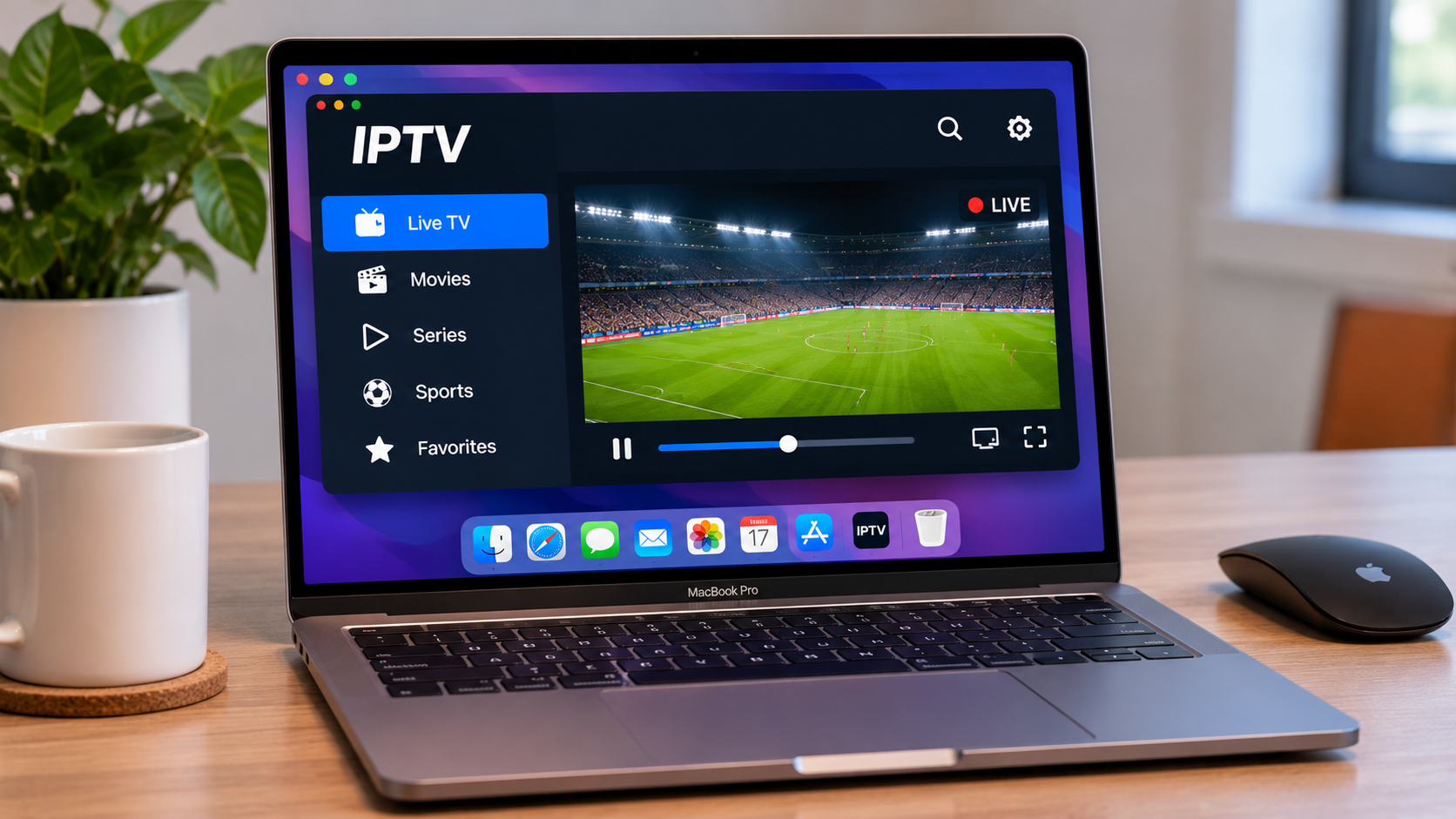

A Mac can be a practical device for IPTV, especially for people who want to watch live television, sports, movies, or series without using a Smart TV or streaming box.
The setup is usually straightforward. You need a compatible IPTV player, the correct account or playlist details, and a stable internet connection. Once those pieces are in place, a Mac can provide a flexible viewing experience at a desk, on a laptop, or connected to a larger screen.
Why Use IPTV on a Mac?
A Mac is useful because it combines a full desktop operating system with easy access to the internet and external displays.
Compared with a television remote, a keyboard and trackpad make it much easier to enter long login details or search through channel lists.
A Mac can also be useful as a secondary device when the main television is being used by someone else.
For people who travel with a MacBook, it can also provide a familiar IPTV setup away from home.
Start With a Compatible IPTV Player
The first step is choosing a player that works with macOS.
Different applications support different login methods, so check what information your IPTV service has provided before installing anything.
You may have:
-
A username and password
-
An M3U playlist
-
A server address
-
Portal information
-
Another supported connection method
Choose a player that supports the format you already have.
This saves time and avoids configuring an application that cannot use your account.
Do Not Confuse the Player With the Service
An IPTV player is generally just the software used to organize and display streams.
Installing a player does not automatically provide television content.
The subscription or playlist comes separately from the IPTV service.
This distinction is useful because many playback problems are actually login or account issues rather than problems with the application itself.
Enter Account Information Carefully
Using a Mac makes this part easier than setting up IPTV with a TV remote.
You can copy and paste long playlist URLs or server addresses instead of typing every character manually.
Even so, check the information before saving it.
An accidental space at the beginning or end of a URL can sometimes cause a connection problem.
If the application opens but does not show any content, account details are one of the first things worth checking.
Give the Playlist Time to Load
The first time you add an IPTV account, the player may need to download and organize a significant amount of information.
This may include:
-
Live channels
-
Movies
-
Series
-
Channel categories
-
Artwork
-
EPG data
A large playlist can take longer to load during the first session.
Do not assume the application has failed simply because the initial synchronization is not instant.
Let it finish before changing settings.
Organize the Interface Early
A large IPTV list can become difficult to use if everything remains in the original order.
Once the account has loaded, spend a few minutes organizing the interface.
If supported, create favourites for the channels you use regularly.
You may also be able to hide categories you never watch.
This makes the player more practical and reduces the amount of scrolling required later.
Use Search Instead of Browsing Everything
One advantage of IPTV on a computer is that search is usually much easier than on a television.
If you know the channel, film, or series you want, searching by name is often faster than browsing several categories.
This can be particularly useful when using a trackpad or mouse.
A good desktop player should make search easy to reach without opening multiple menus.
Electronic Program Guide on macOS
An Electronic Program Guide, or EPG, can be especially useful on a larger Mac display.
It provides information about current and upcoming television programmes when supported by the service and application.
An EPG may show:
-
Current programme
-
Upcoming programme
-
Start and end times
-
Channel schedule
-
Programme descriptions
A desktop display can make this information easier to read than on a small mobile screen.
Connect the Mac to a Larger Television
A Mac does not have to remain a desktop viewing device.
Depending on the model, you may be able to connect it to a television using HDMI directly or through a suitable adapter.
Once connected, macOS can usually mirror or extend the display.
Mirroring is often the simplest choice when you want the television to show exactly what appears on the Mac.
An extended display can be useful if you want IPTV on the television while keeping the Mac screen available for other tasks.
Check the Audio Output
When a Mac is connected to a television or external monitor, video may appear on the larger screen while sound continues playing through the computer.
If that happens, open the macOS sound settings and select the correct audio output.
HDMI displays often appear as a separate sound device.
This is a simple setting, but it is easy to overlook.
Wi-Fi or Ethernet?
Most MacBooks are used over Wi-Fi, and a good wireless connection can work perfectly well for streaming.
However, Wi-Fi quality can vary around the home.
If IPTV streams smoothly in one room but buffers in another, the difference may be network coverage rather than the Mac or IPTV player.
Desktop Macs or MacBooks using a compatible adapter can also connect through Ethernet.
A wired connection is useful when you want to test whether Wi-Fi is causing repeated interruptions.
Check What Else the Mac Is Doing
A Mac may be running many background tasks while you watch IPTV.
For example:
-
iCloud may be synchronizing files
-
Photos may be uploading
-
macOS may be downloading an update
-
A browser may have many active tabs
-
Another application may be using significant bandwidth
If IPTV suddenly begins buffering, check whether the Mac is busy with something else.
Pausing a large download can sometimes make an immediate difference.
Comparing IPTV Options for Sweden
Device support matters when choosing an IPTV setup, especially if you plan to use the same account across several screens.
Users researching IPTV subscriptions, setup guides, and compatible players for the Swedish market can review FIRST CLASS IPTV when comparing options for computers, Smart TVs, mobile devices, and streaming platforms.
Whatever service you use, follow its current setup instructions because recommended players and login methods can differ between devices.
Use Full-Screen Mode for Longer Viewing
For films, series, or sports, full-screen mode usually provides the most comfortable experience.
It removes desktop distractions and gives the video more space.
On a MacBook, lowering unnecessary screen brightness slightly can also reduce battery use during longer sessions.
If the Mac is connected to power, this matters less, but keeping the laptop well ventilated is still useful.
Avoid Blocking MacBook Ventilation
Streaming video can generate heat, especially on older laptops or when several applications are running at once.
Avoid placing a MacBook on a soft bed or sofa where ventilation may be restricted.
A hard desk or table is usually better.
If the device becomes unusually hot, close unnecessary applications and give it time to cool.
Higher Resolution Uses More Resources
A high-resolution stream may require more network bandwidth and processing power.
A newer Mac should generally handle video efficiently, but network conditions still matter.
If a very high-quality stream repeatedly buffers while another version works smoothly, the lower setting may provide the better real-world experience.
There is little benefit in choosing maximum resolution if playback becomes unstable.
Use Headphones When Needed
A Mac is often used in shared spaces.
Headphones can be useful for late-night viewing, travel, or situations where other people are working nearby.
Both wired and Bluetooth options can work.
If Bluetooth audio seems slightly delayed, reconnect the headphones or test another audio output.
Some playback applications may also include audio-sync controls.
Subtitle Support Can Vary
Subtitles are important for many viewers, particularly when watching international content.
Not every player handles every subtitle format in exactly the same way.
If subtitles are missing:
-
Check whether the content actually includes a subtitle track.
-
Open the subtitle menu.
-
Try another available language.
-
Restart the stream.
-
Test the same content in another compatible player.
If subtitles work in one player but not another, the difference is likely software-related.
Recording May Be Easier on a Mac
Some IPTV players support recording when the service, application, and content allow it.
A Mac can be useful for this because it usually has more accessible storage than a small streaming device.
Before using recording regularly, check where files are being saved and how much storage remains available.
A short test recording is a good idea before relying on the feature for a longer programme.
Keep macOS and the IPTV Player Updated
Operating-system updates can affect application compatibility.
If an IPTV player that previously worked normally starts crashing after a macOS update, check whether a newer version of the player is available.
The reverse is also true. An updated player may require a newer macOS version.
Keeping both reasonably current can reduce compatibility problems.
What to Do if IPTV Stops Working
Start with simple checks rather than reinstalling everything.
First, try another channel.
If only one stream is affected, the problem may be limited to that channel.
Next, open another video service.
If everything online is slow, check the network.
Then restart the IPTV application.
If needed, restart the Mac and router.
This order gives you useful information without changing settings unnecessarily.
Avoid Installing Too Many IPTV Applications
macOS makes it easy to test different players, but there is little benefit in keeping many applications installed once you have found one that works.
Too many players can make it harder to remember where settings or account details are stored.
Keep the application you actually use and remove outdated or unnecessary alternatives.
A simpler setup is easier to maintain.
Keep Account Details Private
Playlist URLs, usernames, passwords, and server details should not be shared publicly.
Be careful when taking screenshots for technical support.
A screenshot of a player settings page can accidentally reveal sensitive account information.
Review the image before sending it to anyone.
MacBook or Smart TV?
A Smart TV offers a simpler living-room experience because everything is controlled from one screen and remote.
A Mac provides more flexibility, easier typing, and better troubleshooting options.
For occasional IPTV use, workspaces, travel, or testing, a Mac can be extremely practical.
For everyday family viewing, a television may remain more comfortable.
Many users will find value in having both options available.
Final Thoughts
A Mac can provide a straightforward IPTV setup when paired with a compatible player and stable internet connection.
Its main advantages are flexibility, easy account setup, strong search and navigation, and the ability to connect to external displays.
To keep the experience reliable, use a player that supports your account format, organize favourites, monitor background network activity, and keep the software updated.
If something goes wrong, test the simplest possibilities first. Another channel, another application, or another network connection can often reveal the cause much faster than reinstalling the entire setup.


