


How to Find and Delete Duplicate Contacts on iPhone?
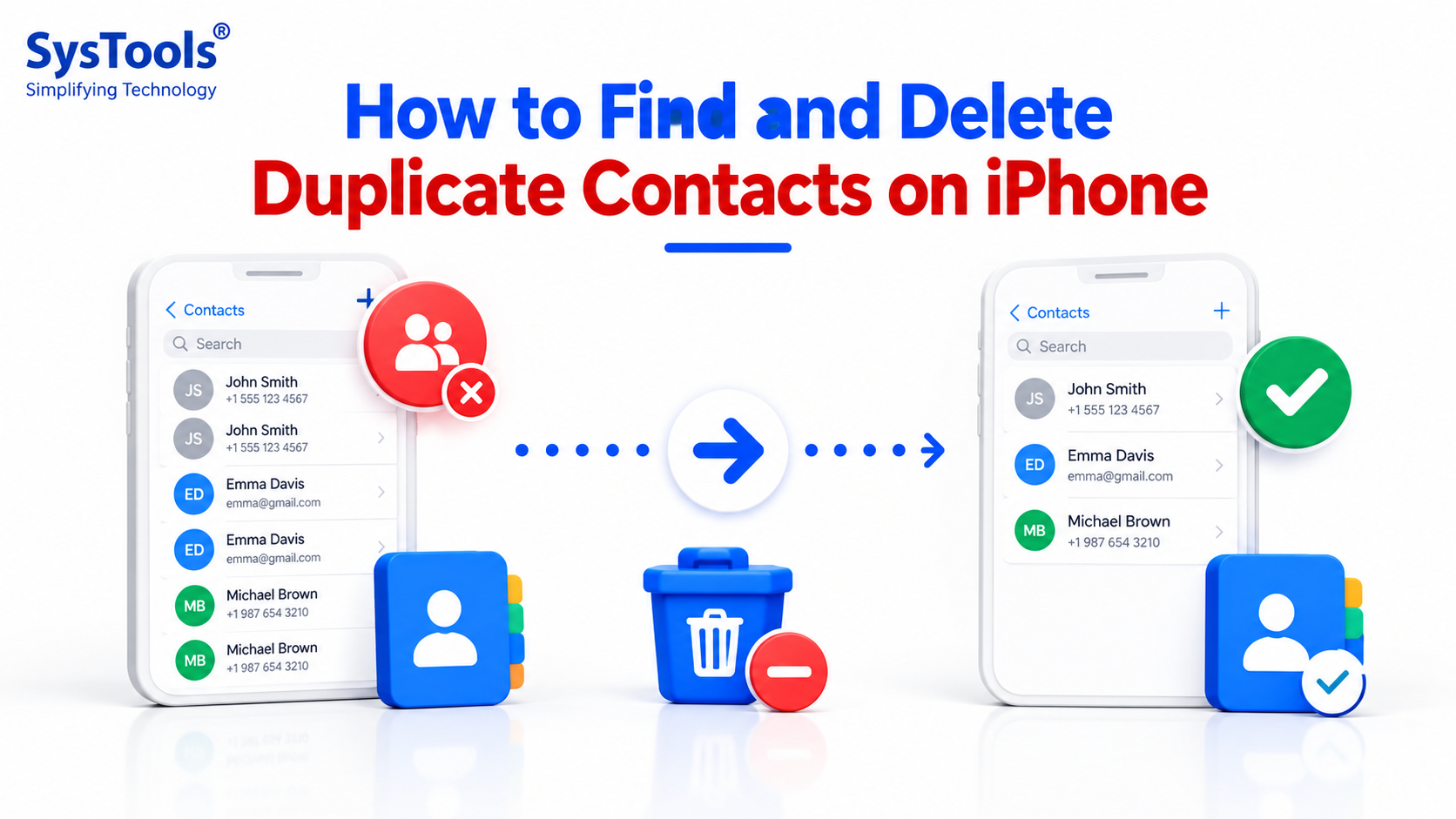
Duplicate contacts on an iPhone can make your address book messy and difficult to manage. The same person may appear multiple times with different names, phone numbers, or email addresses. This often happens when contacts are synced from iCloud, Gmail, Outlook, or imported from another device.
Fortunately, you can find and remove duplicate contacts using built-in iPhone features, manual methods, or a dedicated duplicate contact remover. In this guide, we will explain how to find and delete duplicate contacts on iPhone step by step.
Why Do Duplicate Contacts Appear on iPhone?
Duplicate contacts can be created for several reasons, including:
-
Syncing contacts from multiple accounts.
-
Importing contacts from another iPhone or device.
-
Restoring an old backup.
-
Repeatedly importing VCF or vCard files.
-
Using iCloud, Gmail, and Outlook contacts together.
-
Saving the same person with different information.
For example, the same person may be saved as John Smith in iCloud and John S. in Gmail.
Method 1: Merge Duplicate Contacts on iPhone
Recent iOS versions can automatically detect certain duplicate contact records.
-
Open the Contacts app.
-
Look for the Duplicates Found option.
-
Tap View Duplicates.
-
Review the duplicate contact records.
-
Tap Merge for individual duplicates.
-
Use Merge All if you want to combine all detected duplicates.
This is the easiest option when your iPhone successfully identifies the duplicate records.
Method 2: Manually Find and Delete Duplicate Contacts
If your iPhone does not detect all duplicates, you can check them manually.
-
Open the Contacts app.
-
Search for a person's name.
-
Check whether multiple entries exist for the same person.
-
Compare phone numbers, email addresses, and other details.
-
Open the unwanted contact.
-
Tap Edit > Delete Contact.
-
Confirm the deletion.
Be careful when deleting contacts because two people can have similar names but different contact information.
Method 3: Check Contact Sync Accounts
If duplicate contacts keep coming back, they may be caused by synchronization.
Go to Settings > Apps > Contacts > Contacts Accounts and review the accounts that have Contacts enabled. If the same contacts are stored in multiple accounts, removing them from only the iPhone may not solve the problem.
Check your iCloud, Gmail, Outlook, or other contact accounts and clean duplicate records from the original source.
Method 4: Automatically Remove Duplicate Contacts Using SysTools
When you have hundreds or thousands of duplicate contacts, manually checking every entry can take considerable time. In such situations, an automated solution such as SysTools vCard Contacts Remover can help clean large contact collections more efficiently.
This supports commonly used contact formats such as VCF/vCard, MAB, LDIF, and SQLite. It can identify duplicate contacts based on different contact properties, making it useful when duplicates are not identical.
Steps to Remove Duplicate Contacts Automatically
-
Download and install SysTools Software on your system.
-
Add the contact file containing duplicate records.
-
Select the required duplicate detection criteria.
-
Scan the contacts to identify duplicate entries.
-
Preview the detected duplicates.
-
Select the duplicates you want to remove.
-
Start the removal process.
-
Save the cleaned contact data.
After cleaning the contact file, you can import the resulting contacts into your preferred account and synchronize them with your iPhone.
How to Prevent Duplicate Contacts on iPhone
After cleaning your address book, follow these practices to prevent duplicates:
-
Use one primary account for storing contacts.
-
Avoid importing the same contact file repeatedly.
-
Review contacts before importing them.
-
Keep names, phone numbers, and email addresses consistent.
-
Check synchronization settings when duplicates return.
-
Maintain a backup before performing bulk cleanup.
Final Thoughts
Duplicate contacts can quickly clutter an iPhone address book, especially when contacts are synchronized across multiple accounts. For a small number of duplicates, the iPhone's Merge Duplicates feature or manual deletion is usually sufficient.
However, if you have a large contact collection or duplicates stored in VCF, MAB, LDIF, or SQLite files, an automated solution like SysTools Duplicate Contacts Remover can make the cleanup process faster and more manageable. Always keep a backup of important contacts before performing bulk deletion or merging.

 English
 Arabic
 French
 Portuguese
 Deutsch
 Turkish
 Dutch
Dutch
 Italiano
 Russian
 Romaian
 Portuguese (Brazil)
 Greek
Greek